
Each chat's own notes, and folders outside the project
Since 0.2.13 every chat keeps its own agent notes, a chat can stay off its project's notes, and one card lets a chat work in a folder outside the project. What each one is for, and how to use them.
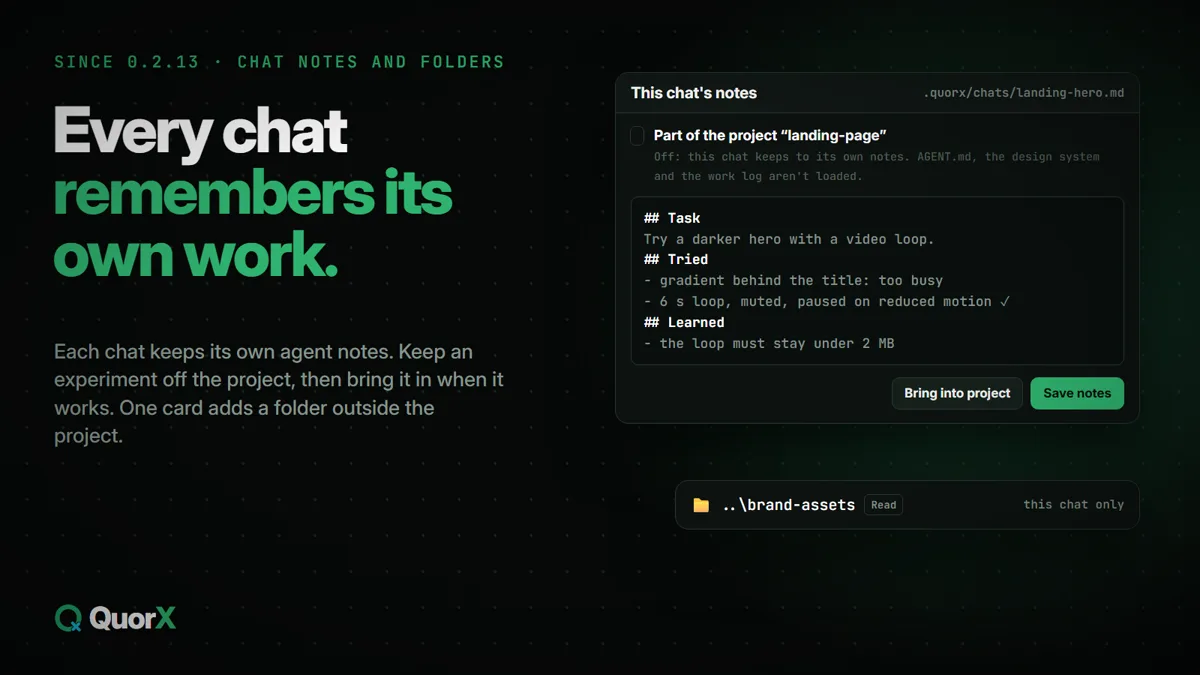
A project's agent shares one set of notes, AGENT.md: what the project is, how to run it, the decisions made. That suits the main work. A side chat, a quick experiment or a one-off question needs its own space, though, and sometimes the files you need are in another folder. 0.2.13 added both.
Each chat has its own notes
Open This chat's notes from the chat's header. It's what the chat's agent keeps for itself: the task, what it tried, what it learned. The agent writes there as it works, and you can too. Press Save notes when you edit it.
The notes live in the project's .quorx/chats folder, one Markdown file per chat, so they survive a restart and the chat picks up where it left off.
Keep a chat off the project
In the same panel, Part of the project is ticked for an ordinary chat. It reads the project's notes (AGENT.md), design system and work log, and can add to them.
Untick it, and the chat keeps to its own notes. The project's notes, design system and work log aren't loaded, and it can't change them. Good for:
- trying an idea without teaching the project's notes something you'll throw away;
- asking about something unrelated while the project stays open;
- a chat whose rules shouldn't leak into the project's.
Every Scratch chat is off the project unless you say otherwise. If a side chat turns out to matter, press **Bring into project**: the chat becomes part of it, and the agent copies what matters for the whole project into AGENT.md, keeping its own steps in its notes.
Folders outside the project
When the agent needs a folder outside the project ("compare this with the old version in my other folder"), it asks with one card. Allow it, and the folder joins this chat: the file tools read (and, if you allowed writing, write) there like in the project.
- It's for this chat only, and shows in the chat's 🛡 Permissions with its level, Read or Read + write, where you can narrow or remove it.
- Your key folders, QuorX's own data and blocked places (drive roots, your profile, system folders) are never offered.
Paths in replies open in File Explorer
When a reply names a file on your PC, click the path and File Explorer opens with it selected.