
Permissions, in one place
One Permissions window now lists everything QuorX lets run without asking: command rules, tools, apps, folders, Chrome sites and MCP servers, for one chat, one project or everywhere. Approval cards say plainly what "Allow always" covers and where to take it back.
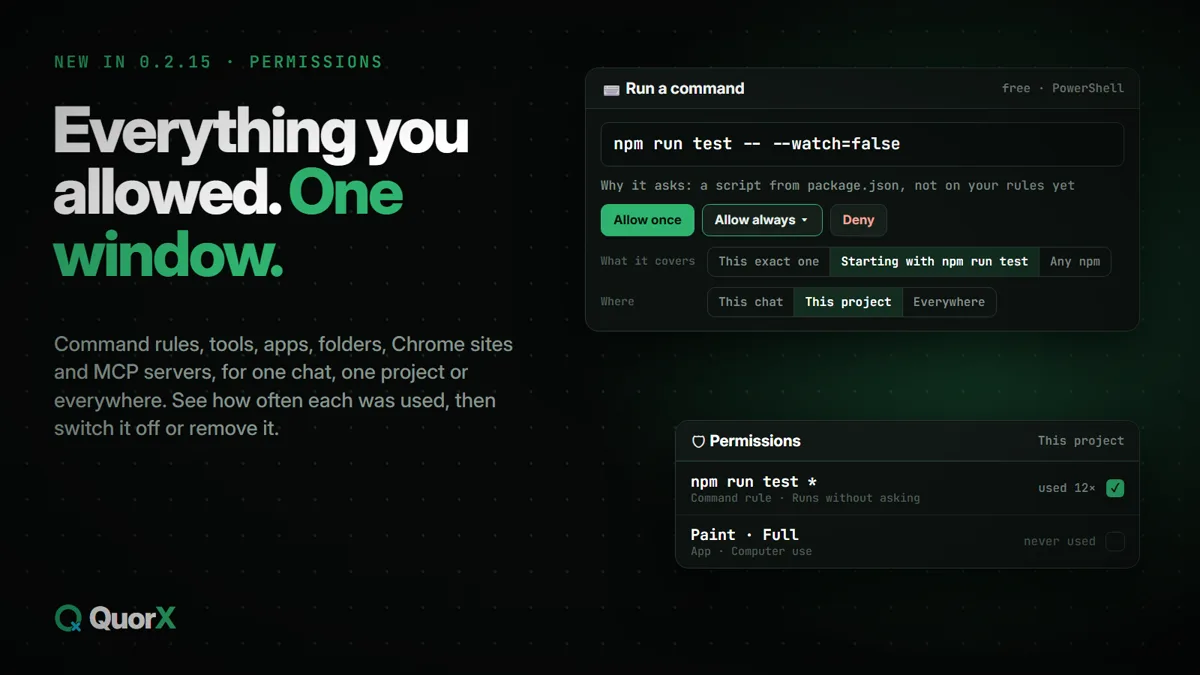
Every "Allow always" you click adds a permission somewhere: a command rule, a tool, an app for computer use, a folder, a Chrome site, an MCP server's tool. Until now they lived in different places. In 0.2.15 they're all in one Permissions window, with what each one covers, where it applies and how often it was used.
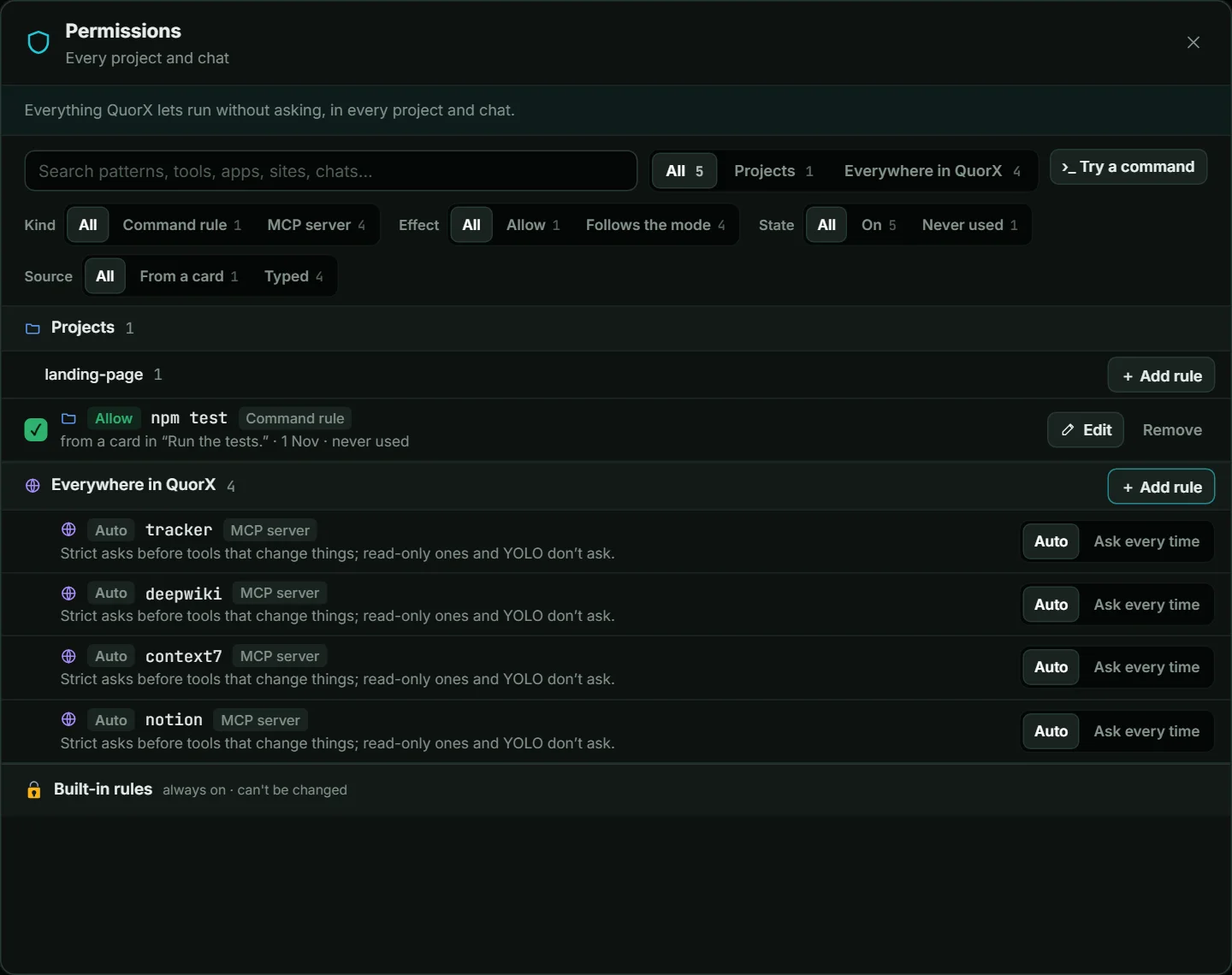
Open it
- From a chat: the 🛡 button in the message box shows what applies in this chat, with a link to the whole window.
- From a project: Project settings → Permissions.
- For everything: ⚙ Settings → 🛡 Approvals & safety → Permissions.
Three scopes
| Scope | Covers |
|---|---|
| This chat | Only the chat it was allowed in |
| This project | Every chat in that project |
| Everywhere in QuorX | Every chat in every project |
Each row shows its kind (command rule, tool, app, folder, Chrome site, MCP server), its scope, what it does (Runs without asking, The deciders vote or Never runs) and how often it was used: *used 12× · last 2 hours ago, or *never used. Search across all of them, and switch any row off (it's kept, just not used), narrow it or remove it.
The window never widens anything by itself. Widening a permission, say a folder from Read to Read + write, still takes the agent's card or a rule you type.
Clearer approval cards
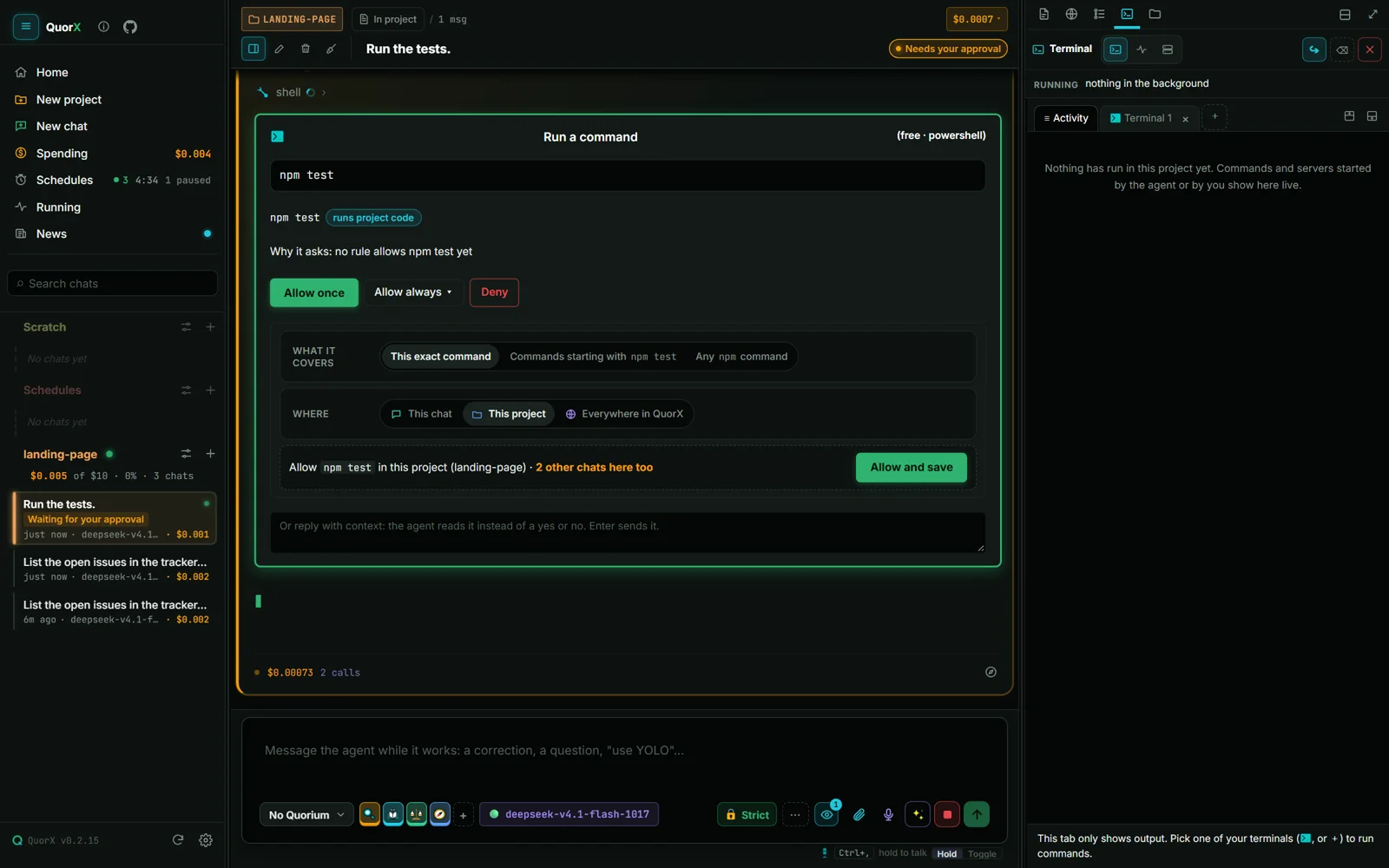
A command's card now says plainly:
- what will run, split into its parts, with any packages it installs and how old they are;
- why it asks;
- a warning when it reaches past the project (a push, a deploy, a whole-computer install) or reads your keys.
Allow always ▾ opens two choices before you save:
| Choice | Options |
|---|---|
| What it covers | This exact command · Commands starting with it · Any use of the program |
| Where | This chat · This project · Everywhere in QuorX |
Picking Any warns you that every use of the program will run without asking, including ones that run other code. Some commands never get the button: pushes and deploys, commands QuorX can't read, deletes or writes outside the project, and anything that touches your keys. If you're sure, you can type a rule for them yourself in Permissions.
A tool's card (an MCP tool, for example) says that its "Allow always" covers that tool in this chat only, and where to remove it.
Type instead of clicking
While a card waits, you can type in it or in the message box. Your words go to the agent as the answer, neither yes nor no: "use the dev script instead", "only for the docs folder". The agent reads them and carries on.
What never changes
The bottom of the window lists the rules no permission can override:
- a Deny beats an Ask, and an Ask beats an Allow, whatever their scopes;
- extreme commands always pause for you, in warning colours, in ⚡ YOLO too;
- ⚡ YOLO checks wildcard rules on interpreters (
node *,python *) anyway; - a site your request didn't name asks before the agent opens it in your own Chrome;
- the cards that turn on computer use, Chrome, an MCP setup or a settings change are buttons only. Typed words never switch them on.