
Schedules that run themselves
A schedule starts a chat on its own, with its prompt, model and mode: every weekday at 9, every hour, or once tomorrow. How to make one, how it tells you when it matters, and how schedules keep themselves in check.
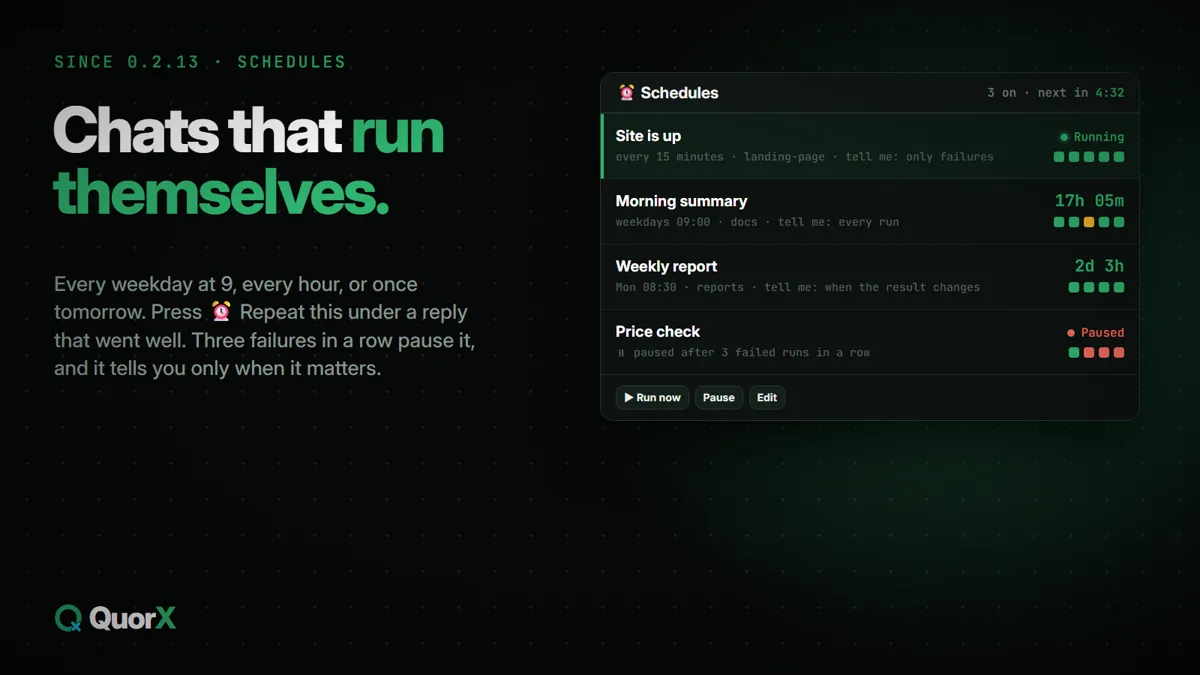
A schedule is a chat QuorX starts on its own. You give it a prompt, a project, a model and a time, and it runs while QuorX runs (the desktop app or its tray), posting each run in its own chat.
Make one, three ways
| Way | How |
|---|---|
| ⏰ Repeat this | Under a reply that went well, press ⏰ Repeat this. A new schedule opens with the message that asked for it, this chat's model and mode, set to every hour. Change the time and press Create schedule. |
| ⏰ Schedules | In the sidebar, open Schedules and make a new one: name, project, prompt, when, model and mode. |
| Ask in a chat | "Every weekday at 9, check the open issues and summarise them." The agent creates, changes, pauses or runs schedules from the chat. |
When it runs
| Kind | Example |
|---|---|
| Once | A date and time, or In 1 hour / Tomorrow 9:00 |
| Daily | A time, on the days you tick (Weekdays in one click) |
| Every | Every so many minutes or hours, as often as every 3 minutes |
A run missed while the computer slept or QuorX was closed runs once when it's back, marked as missed. Several missed runs of one schedule become one.
One chat per schedule
Every run of a schedule posts in the schedule's one chat, marked as a schedule chat in the sidebar. Each run starts fresh and sees only the schedule's prompt. What you type in that chat sees the whole chat, so you can ask "what did the last three runs find?" or "run this at 10 instead". If you'd rather have a new chat every run, tick **Start a new chat every run**.
See what they're doing
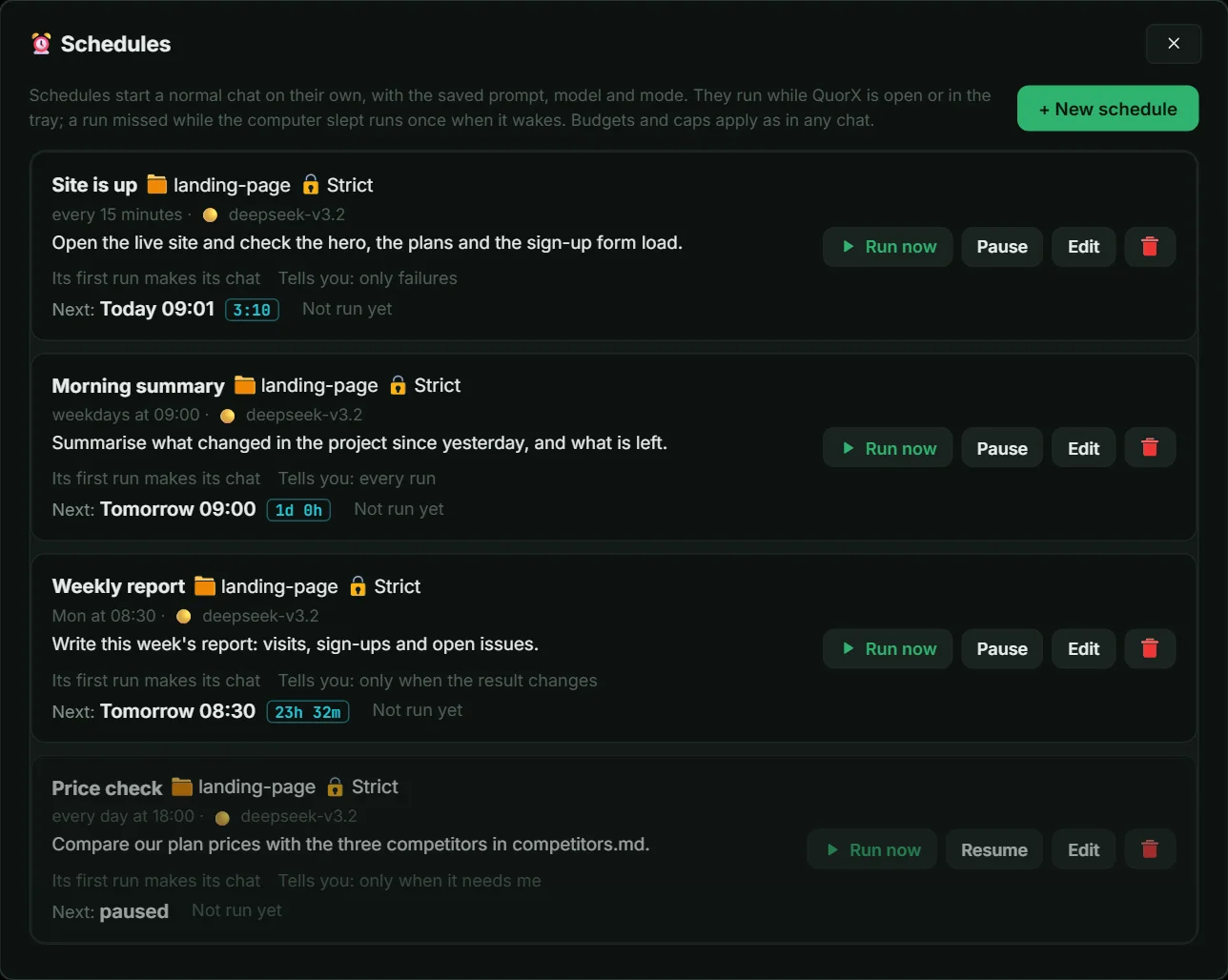
- The sidebar's Schedules row shows how many are on, a countdown to the next run and how many are paused. A run going on now pulses, and turns amber when it waits for you.
- In the Schedules window, each schedule shows its next run, its last runs as coloured dots, and ▶ Run now, Pause / Resume and Edit.
- Open chats pick up new runs and their cards as they happen.
When it tells you
Pick one under Tell me: every run, only failures, only when it needs me or **only when the result changes**. A run that waits for you always tells you.
Keeping themselves in check
- Three failed runs in a row pause the schedule, and it tells you why.
- A run cut short counts as failed. The next run starts fresh, so there's nothing to keep going from.
- A card waits, then ends the run. When a run needs your approval, the card waits a set time (15 seconds unless you change it). Unanswered, the run ends rather than hanging.
- Chrome tabs tidy up. A run that used your Chrome closes its tabs 30 seconds after it goes well. A failed run keeps them open for you to look at.
- Your mode still applies. A 🔒 Strict schedule asks as any Strict chat does. Sending, posting and buying in your Chrome still wait for you unless you choose to trust that schedule, and a password or a payment always asks.