
Your own browser, for the agent
With the QuorX extension, the agent works in your everyday Chrome, Brave or Edge, signed in as you, only in the tabs you allow, and asks before it sends, deletes or buys. From 0.2.12 you can stop it from the toolbar, keep sites off limits and teach it a routine.
QuorX's agent has always had a browser of its own. It opens what it builds, scrolls, clicks and checks the screenshots. That browser is built into the app, and for the agent's own pages it is exactly right.
It is the wrong place for your accounts. Google, X and a growing list of other sites refuse to sign in inside an app's built-in browser. You get a page that says "This browser or app may not be secure", and no amount of trying again changes it. Passkeys don't show their prompt there either.
From 0.2.11 the agent can work in your everyday browser instead: Chrome, Brave or Edge, where you are already signed in. Nothing to sign in again, no new profile, and nothing for Google to block, because it is simply your browser.
- 1The agent opens x.com in your browserin a QuorX window, signed in as you
- 2It reads the timelinelike you would, with the same session you already have
- 3It answers in the chatand stops to ask before it posts, replies or deletes anything
The agent sees what you see, and every action that changes something waits for your yes.
What's new in 0.2.12
The extension is now version 0.3, and the agent is steadier in your browser:
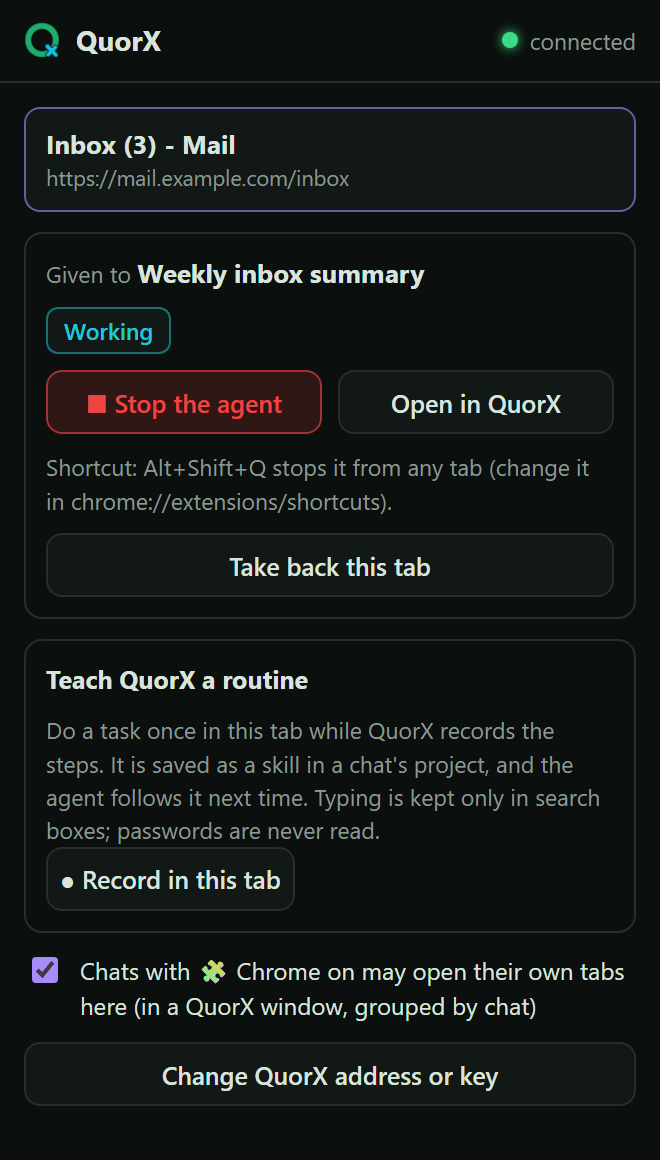
- Stop it from anywhere. The extension's popup has ■ Stop the agent, and Alt+Shift+Q stops it from any tab. Stop in QuorX now ends a browser step at once, too.
- See what it's doing. The QuorX button in your toolbar shows whether the agent is working, waiting for you, or done, and the tab it works in gets a thin border.
- Read without the debugging bar. Once you allow it, the agent reads pages without Chrome's "started debugging this browser" bar. The bar shows up only while it clicks or types.
- Tidy tabs. The agent's tabs sit in a "QuorX · chat" tab group in their own window, at most 6 per reply, and they close when the reply ends.
- More ways to give a tab. Right-click a page, a selection, a link or a picture, or drag a tab into a chat's group.
- Site rules. List sites the agent may never open, sites it may always open, and sites where it only reads.
- Teach it a routine. Do a task once while QuorX records it, and the agent follows the same steps next time.
- Steadier pages. Every click waits for the page to settle, and the agent checks a button is visible and not covered before it clicks. It can also scroll long chat lists and gather a whole feed while it scrolls.
What it unlocks
Anything you can do signed in, the agent can now read and help with:
- Your inbox: summarise today's mail, find the invoice from last week, draft a reply for you to send.
- Social feeds: see what people say about your project on X, collect the posts that mention a bug.
- Dashboards you pay for: read numbers from analytics, hosting or billing pages that have no public API.
- Long forms: fill in the boring parts of a form for you to check, then stop before Submit.
- Research behind a login: papers, docs or courses in tools you already have accounts for.
- Chores you repeat: record the clicks once, then ask for it by name.
The agent still builds and checks its own pages in its own browser. Your browser is only for the work that needs you.
How a request travels
Set it up once
The extension ships inside QuorX. Setting it up takes about a minute, and you do it once.
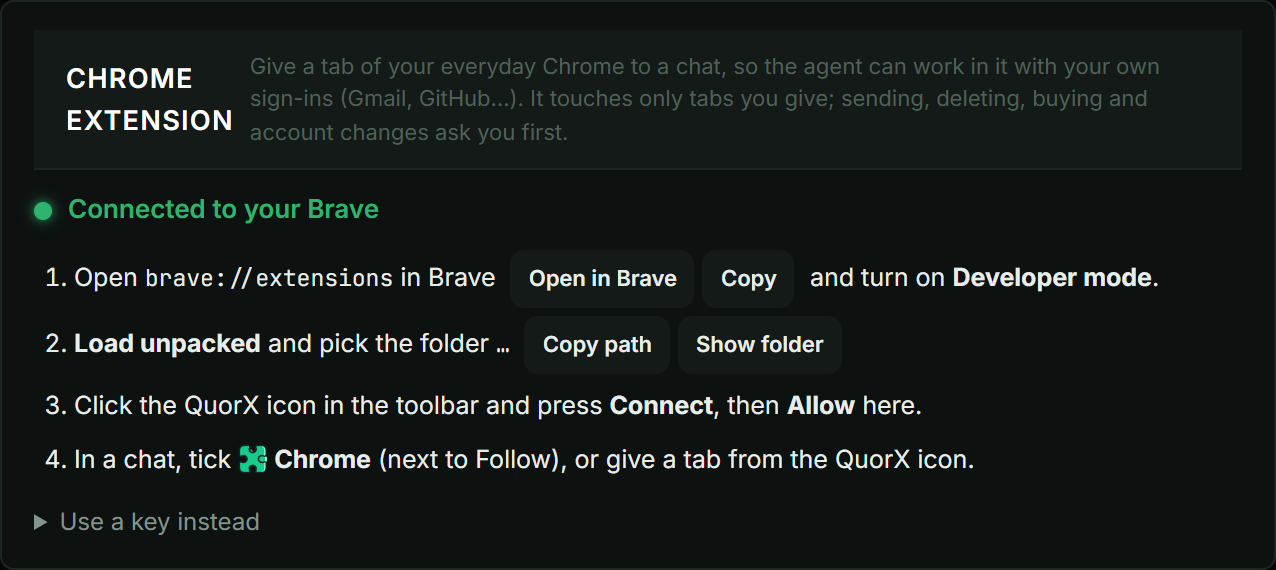
- In QuorX, open ⚙ Settings → Code & servers → Chrome extension. It names your default browser (Brave, Chrome or Edge) and has an Open button for its extensions page.
- Turn on Developer mode on that page, press Load unpacked, and pick the folder QuorX shows. Copy path and Show folder are right next to it.
- Click the QuorX icon in your browser's toolbar and press Connect to QuorX.
- QuorX asks whether to allow it. Press Allow.
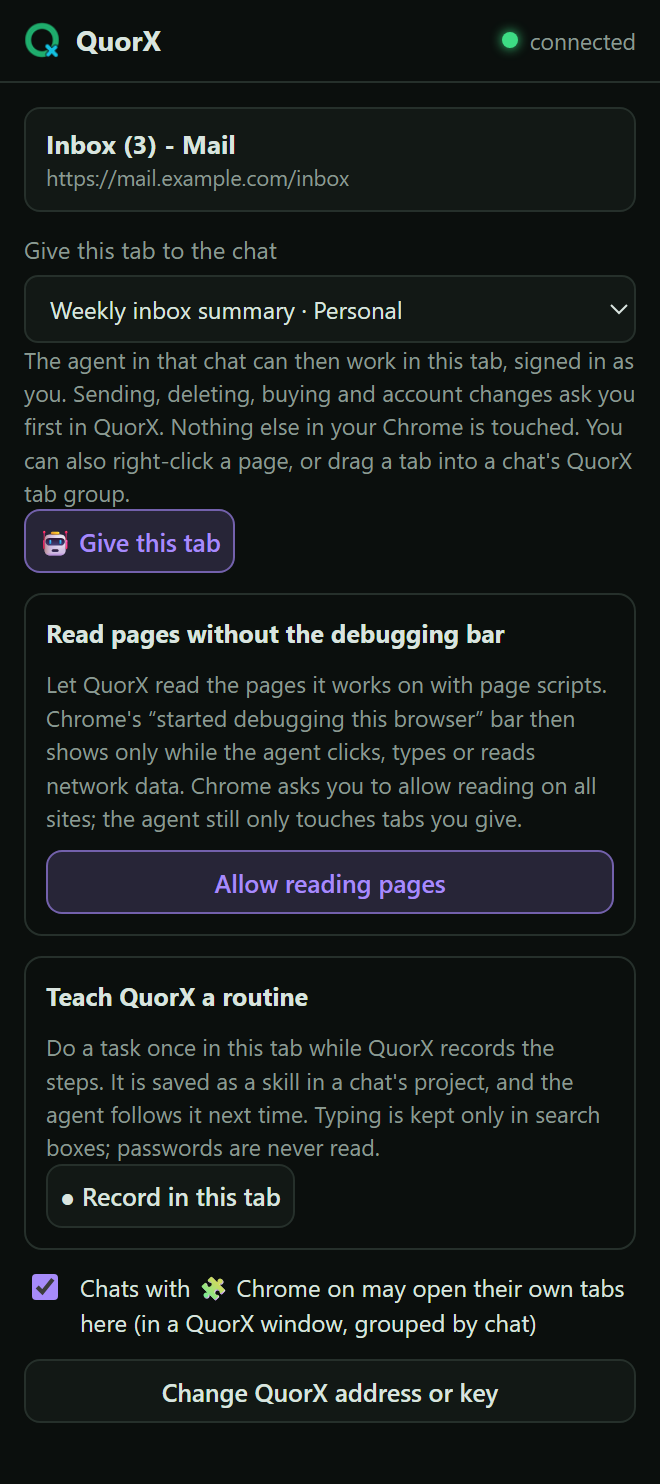
- Optional: in the same popup, press Allow reading pages. Your browser asks to let QuorX read sites. This only changes how the agent reads the tabs you give it, and it never touches other tabs. In return, the debugging bar shows only while the agent clicks or types.
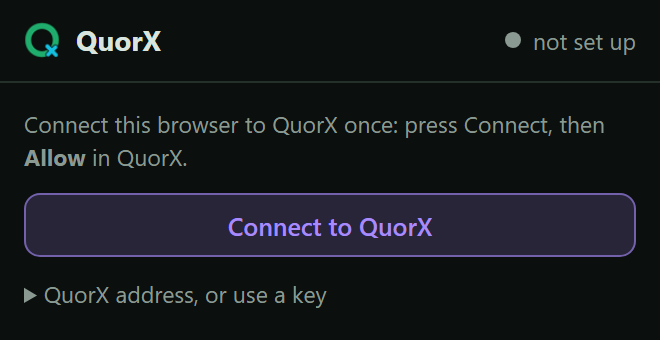
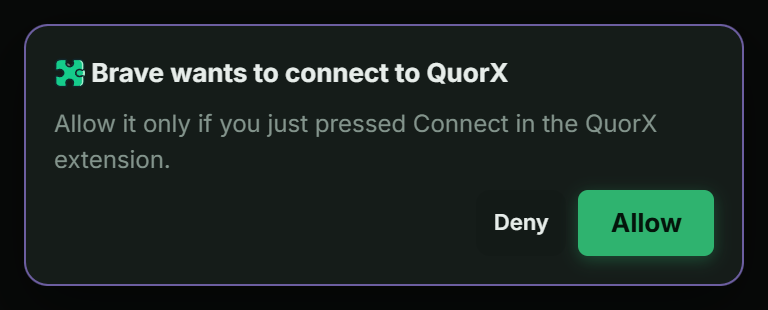
No key to copy: the Allow click is the pairing. The extension updates itself after that: when QuorX has a newer version, it reloads itself. If you set it up on 0.2.11, it moves to 0.3 by itself.
Ways to use it
Tick 🧩 Chrome in a chat. It sits under the message box, next to Follow. With it on, the agent in that chat can open its own tabs in your browser, in a separate QuorX window, whenever the request needs your accounts. Each chat's tabs are grouped as "QuorX · chat name". Other chats can't use them. Untick it and that chat's agent can't touch your browser at all.

Give one tab. Already on the page you mean? Click the QuorX icon on that tab, pick the chat, and press 🤖 Give this tab. Or right-click the page and give it from the menu. If you right-click selected text, the selection goes to the agent with the tab. You can also drag a tab into a chat's QuorX group. The chat shows which tab it has, with Take back next to it.

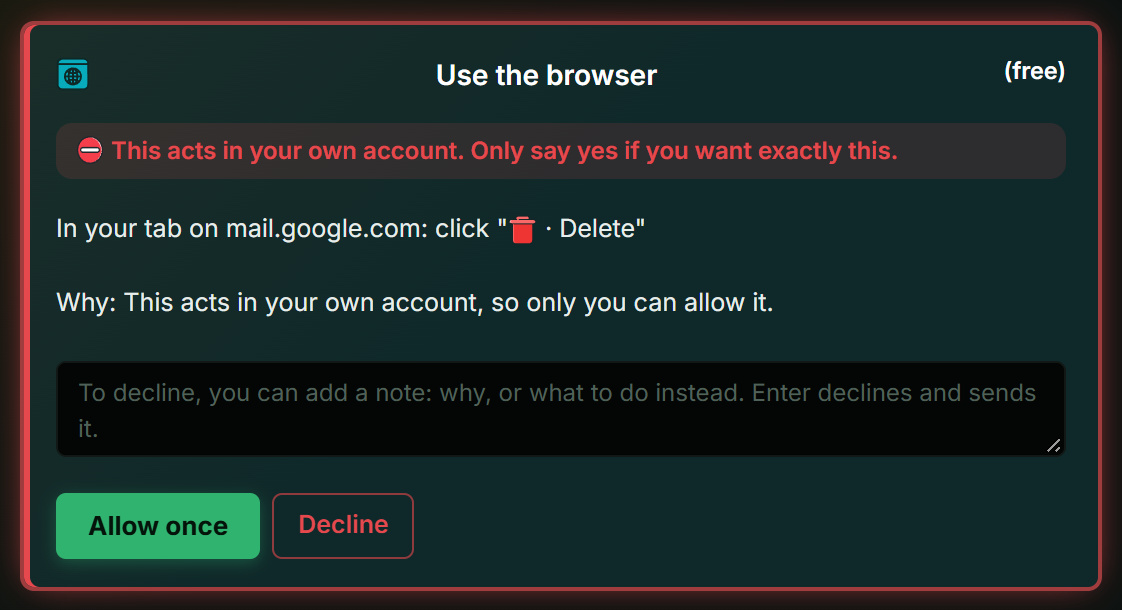
Let a schedule use it. A scheduled chat with 🧩 Chrome on can check your dashboards or inbox while you're away. The same red cards apply, so anything that changes something waits for you.
While it works
The popup for a given tab shows the chat, what the agent is doing, ■ Stop the agent and Open in QuorX. Alt+Shift+Q stops every reply that is using your browser, from any tab. You can change the shortcut on your browser's extension shortcuts page.
The agent's window opens at 1400×900. If you shrink or minimise it, it goes back to that size, so the agent always sees a full page. A chat opens at most 6 tabs of its own per reply. After that it reuses the current one.
When a reply ends, the tabs the agent opened close, so an empty QuorX window means it has finished. To keep them, turn off Close the agent's tabs when it's done in Settings.
Teach it a routine
Some chores are the same clicks every week. In the popup, press ● Record in this tab and do the task once. Then name it, pick a chat whose project should keep it, and press Stop and save. QuorX saves the steps as a skill in that project, and the agent follows them the next time you ask.
Recording keeps what you type only in search boxes, and it never reads passwords.
Site rules
In ⚙ Settings → Code & servers → Chrome extension you decide where the agent may go:
- Never open: sites it may never open in your browser, such as your bank. A site includes its subdomains.
- Always allowed: sites it may open without asking, even when your request didn't name them.
- Read-only sites: typing outside a search box always asks you on these, whatever the request says.
Two more switches sit next to them. Read-only for reading requests is on by default: when you ask the agent to read, check or summarise, typing into your account asks you first. Deciders check typing in your tabs has the deciders judge, from your request alone, whether each thing the agent types serves what you asked.
What it can't do
The extension sits next to all your accounts, so it is built to do as little as possible:
| Protection | Level | How |
|---|---|---|
| Only tabs you allowed | By design | The extension refuses any command for a tab that wasn't given or opened for that chat. |
| Asks before it acts | By design | Send, delete, buy, pay, post, reply, sign out, settings and passwords get a red card. The deciders never answer it, even in ⚡ YOLO. |
| Asks before a new site | By design | A site your request didn't name asks you before it opens, unless you listed it under Always allowed. |
| Only QuorX can connect | By design | The link only accepts a browser extension, paired by your Allow click. A web page can't use it. |
| You see when it works | By design | The toolbar button shows its status and the tab gets a border. Chrome's debugging bar shows while it clicks or types. |
| Network data without secrets | By design | When the agent reads a page's data requests, cookies, tokens and passwords are removed, and nothing is sent again. |
| Stop it any time | Your switch | ■ Stop in the popup, Alt+Shift+Q, Stop in QuorX, Take back, or close the tab. |
| Keep sites off limits | Your switch | Never open and Read-only sites in Settings. |
| Turn it off | Your switch | Untick 🧩 Chrome in a chat, or switch off new tabs in the extension's popup. |
No rows at this level.
What's next
A listing in the Chrome Web Store, so installing becomes one click. Until then, the folder in QuorX is the extension, and it keeps itself up to date.