
MCP servers: give the agent more tools
The agent can now use the tools of any MCP server, a program on your PC or a server on the web. Add one in Settings, paste its setup into a chat, sign in to web servers from your own browser, or bring in the ones your other tools already have.
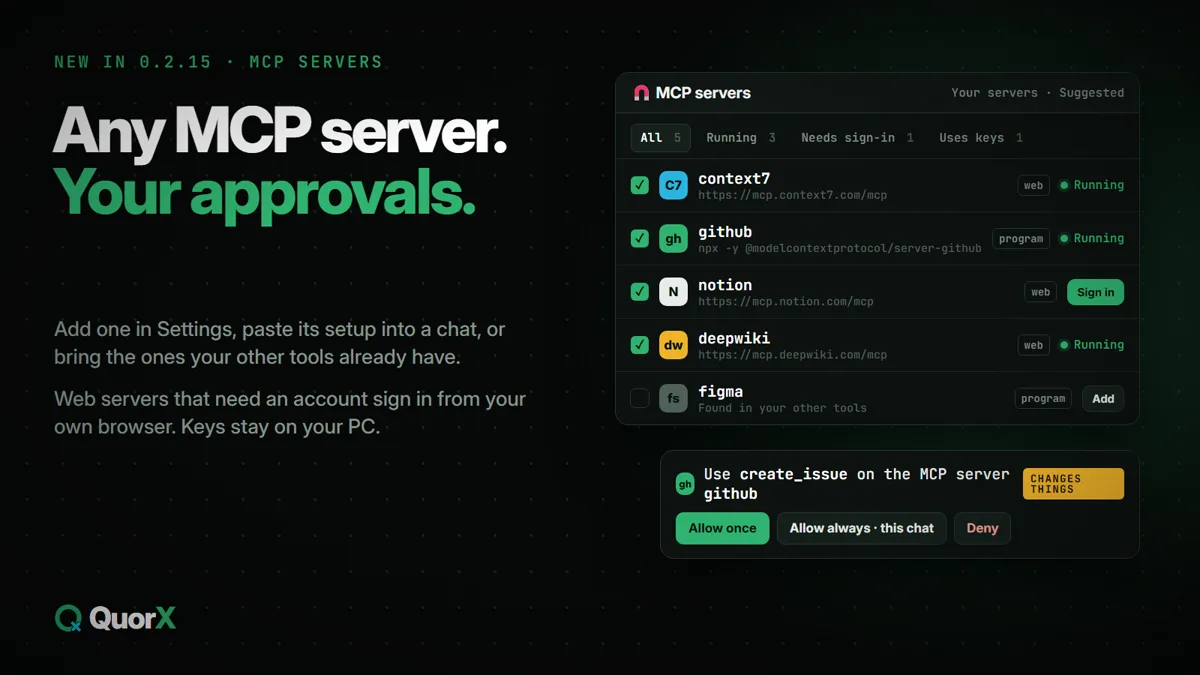
An MCP server is a set of tools the agent can call: docs to read, a design app to drive, your issue tracker, a search engine. Some run as a program on your PC, others are a server on the web. QuorX speaks to both, and the agent uses their tools next to its own files, browser and terminal. It's all in ⚙ Settings → 🧲 MCP servers.
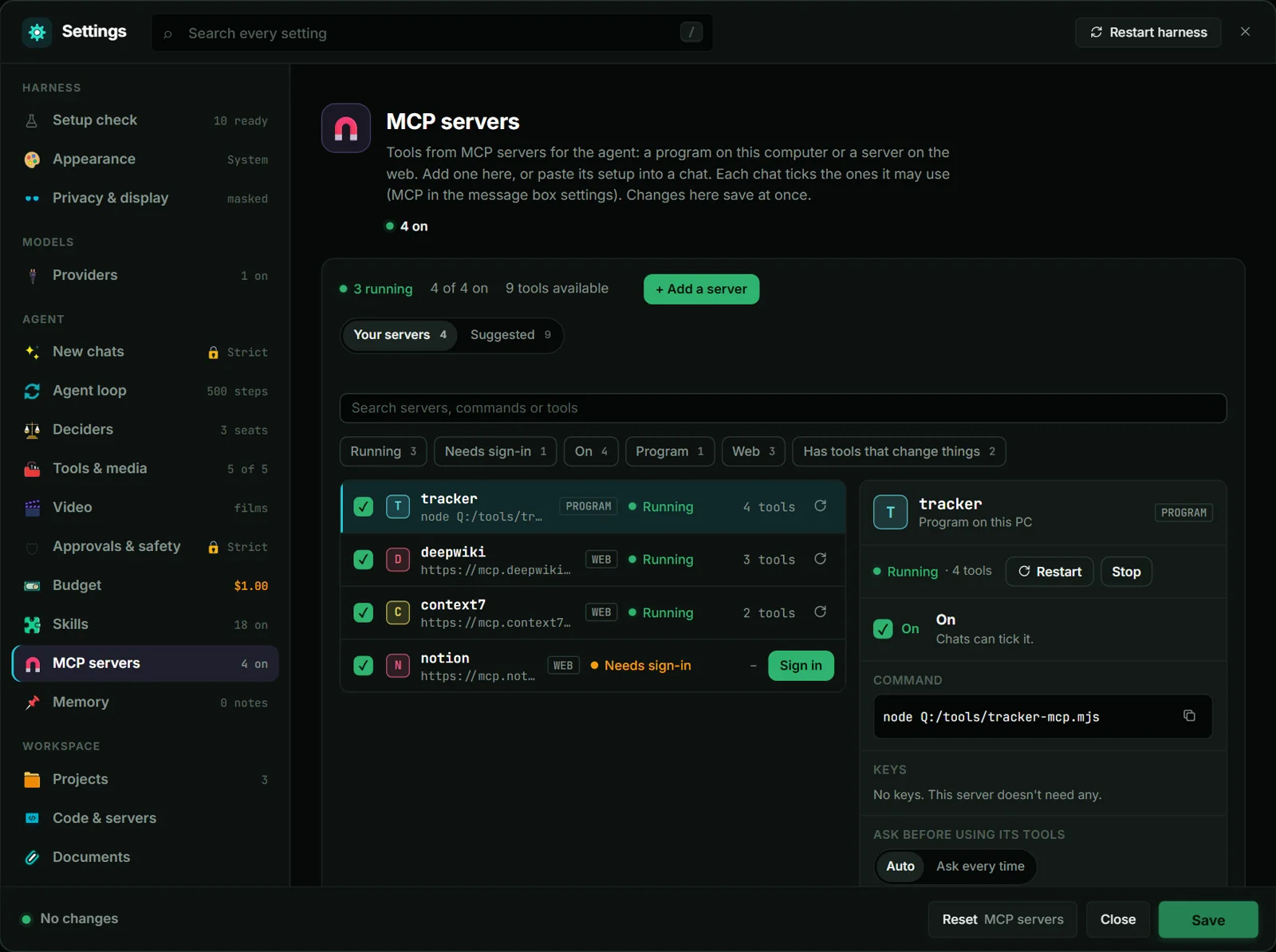
Add a server, three ways
| Way | How |
|---|---|
| One click | Suggested lists free servers that need no key (docs for any library, any public GitHub repo, Microsoft and Cloudflare docs, web search, Hugging Face), and a few that sign in with your account (Notion, Linear, Sentry). Press Add. |
| Paste its setup | + Add a server takes a setup the way you found it: an mcpServers config, an npx -y … line, an add command written for another tool, or a server's https address. Check it shows what it will run before you add it. |
| Bring it from your other tools | Servers already set up in other AI tools on this PC (Cursor, Windsurf, VS Code, Gemini CLI and others) show under Found in your other tools. One click brings a copy into QuorX; yours stays as it is. |
You can also paste a setup straight into a chat and ask the agent to add it. It shows you what it would add, and only your click on that card adds it. Typed words never do.
Web servers that need an account
Servers such as Notion, Linear and Sentry work on your own account. Add one, press Sign in, and its page opens in your own browser, where you sign in as usual. QuorX keeps the sign-in on this PC and renews it by itself. A server waiting for you shows Needs sign-in in the list.
Pick the servers a chat may use
Once a server is on, the message box shows a 🧲 button. Click it to tick the servers this chat's agent may use, with All and None and a search when you have many. Manage opens Settings.
Your servers, at a glance
The Your servers tab lists every server with its state (Running, Not started, Can't start, **Needs sign-in**), how many tools it has and whether it is a program or on the web. Filter by state, by kind, by **Uses keys** or by Has tools that change things, and search by name or tool. Pick one to see its tools, start, restart or stop it, or read why it can't start.
Safe by default
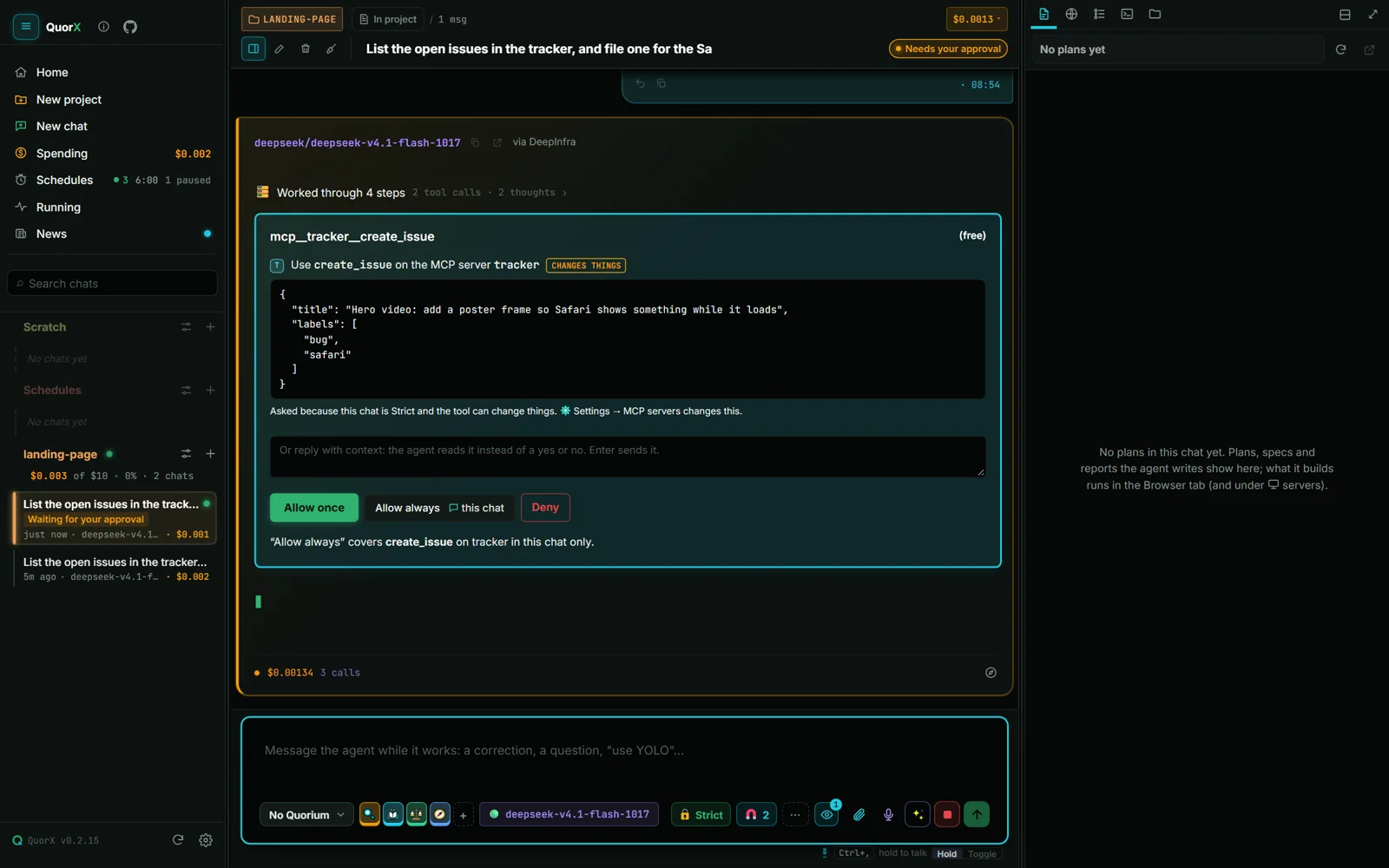
- Tools that change things ask first in 🔒 Strict. Read-only tools run without asking. A server you set to Ask every time asks for every call, in ⚡ YOLO too.
- The card says what will run: the tool, the server and what it sends. CHANGES THINGS marks a tool the server doesn't call read-only. "Allow always" on that card covers that one tool in that chat only.
- Keys stay on your computer. Settings shows only their names. MCP setup files, which can hold keys, are off limits to the agent's file tools, like your other key files.
- Programs stop cleanly. A server's program is fully stopped on Windows when you stop it or close QuorX, and one that floods its output is stopped.
Every server and tool you allowed is also listed in the new Permissions window, where you can take it back.